
TECHNOLOGY
Why Your Internet Feels Slow Even When You Are Paying for Fast Internet?


Picture this: you’re locked in and playing Call of Duty with your friends, and out of nowhere, your internet connection starts acting up. The lag increases to the point that all your actions are delayed, and before you know it, you’ve been killed.
While situations like these are super frustrating, it is important to understand why your internet connection is acting up even though you are paying a hefty amount for your internet connection. Usually this is because of a difference between advertised internet speeds and experienced speeds.
If you have a lot of devices at home and an entry-level plan, it would naturally make sense for you to subscribe to a high speed internet plan so that you can make the most out of your internet experience. However, if you already have a fast connection but still experience slower speeds, this article explains a few ways you can improve your experience.
What “Fast Internet” Actually Means
If you ever look at an internet ad closely, you’ll notice that they always show speeds greater than what you would actually experience. That is because these advertised speeds are the theoretical maximum bandwidth capacity of your internet plan.
On the contrary, real-world throughput is the actual internet speed that you get once you connect your device to your router. There are quite a few factors that contribute to slower real-world speeds, such as network congestion (with too many devices connected to the internet at the same time), Wi-Fi interference (caused by devices with electromagnetic fields near the router, such as baby monitors), and hardware limits where you may be using an outdated router.
Key Differences Between Bandwidth, Speed, and Latency
Before you proceed to figure out why your internet connection may be slow, you must understand the key differences between bandwidth, speed, and latency for a better understanding of how they impact your internet performance.
- Bandwidth: It is the measure of the data capacity your internet connection can handle. It’s like the number of lanes on a highway.
- Latency: Also called Ping, it is the measure of the delay in your internet connection. It is measured in milliseconds (ms), and you can think of it as the distance to the destination. The further it is, the longer it takes to get there.
- Speed: Speed refers to how fast your device (such as your smartphone, laptop, or gaming console) receives data from your internet connection. Picture it like a high-speed car traveling on a highway from one point to another. This is directly impacted by the bandwidth and latency.
Know Your Internet Types
It is likely that if you are using a cable or 5G home internet service, it may be subject to throttling, which can slow down your internet connection. Usually, these internet connection types are throttled during peak usage hours so that ISPs can manage data better and reduce network congestion.
However, that isn’t the case with a fiber internet connection, making it necessary that you know your internet types so that you can choose the best one for yourself. Here’s everything you need to know.
| Fiber Internet | Cable Internet | 5G Home Internet | Satellite Internet | |
| Technology | Light impulses traveling through glass | Traditional coaxial cables | Nearby cell towers for wireless | Satellites orbiting the Earth |
| Speeds | Ultra-fast symmetrical multi-gig speeds | Fast asymmetrical speeds up to gigabit | Moderately fast speeds less than gigabit | Slow speeds up to a few hundred megabits |
| Availability | Limited availability | Available in most parts of the country | Available nearly all over the country | Available all over the country |
| Weather Resistance | Storm-resistant as infrastructure is underground | Prone to storms due to exposed cables | Easily affected by storms | Badly impacted by storms |
| Best For | Large families, remote workers, gamers, and streamers | Smaller families, people on a budget, and students | Renters, temporary setups, and frequent relocations | Remote areas with no access to the other internet types |
If you’re looking for your best bet, then fiber internet is the one you need. However, if availability is an issue, then you should definitely fall back on cable internet.
How to Actually Fix a Slow Internet Connection
There are some fixes that you can use to improve your internet speed. While some of them seem a bit technical, they actually aren’t (since I’ve run them a couple of times myself). Here are some things you can try so that you can make sure your internet performance is up to par:
Run a Bufferbloat Test
Once you search what a bufferbloat test is, they will tell you what it is but won’t tell you how to run it.
A bufferbloat test basically measures how much your latency increases when your home network is congested due to many devices connected to the same internet connection simultaneously.
The process is fairly simple; all you have to do is head to Waveform.com and run the test. It will analyze your internet connection and then assign a grade based on how your internet performs.
The grades range from A+ to F, where A+ to B means your internet is responsive even when busy, C denotes possible delays, and D or F means that your internet can interfere with video calls and streams.
This way, you can test out your latency even if your download speed seems to be good.
Router CPU Bottleneck
One thing that most people don’t know is that routers can have potential bottlenecks as well.
For instance, many routers that support gigabit speeds usually have a very underpowered CPU that can’t process firewall, QoS, or NAT completely, which turns the router itself into a bottleneck and not the internet service provider.
To check if there is a bottleneck, you need to observe if the CPU usage ranges between 90% and 100% when your internet speed keeps dropping during heavy loads. You can open the admin menu (the details should be under your router), and there you can see how much CPU your router is using up.
Usually, when you have features like VPNs and QoS turned on, your internet speed will fall, and this is a major sign that your router is going through a CPU bottleneck. Similarly, you may experience dropped internet connections and high ping during a bottleneck.
You need to have the latest router, which can not only support gigabit speeds but also needs to have a powerful CPU so that it can process data seamlessly and make sure that you have an optimized and fast internet connection.
Streaming-Specific Throttling
You should keep in mind that there may be times when your internet service provider may throttle your internet connection on certain platforms such as Netflix or Amazon Prime Video. This process is commonly called “stream-specific” throttling, and it can ruin your streaming experience.
However, fret not, as there are some ways in which you can bypass this. For instance, using a good VPN should encrypt your data traffic so that your ISP can’t determine that you are on a streaming platform. This will ensure that you’re able to watch your show or movie smoothly.
If not a VPN, you can also switch to an encrypted DNS (Domain Name System), as sometimes your ISP can throttle your internet connection based on the websites your devices request the ISP to open, which then runs them through its own DNS list.
You can bypass this process by opening your DNS settings on your device and your router and changing the DNS to a secure one like Google (8.8.8.8) or Cloudflare (1.1.1.1).
Now that you know everything about getting your internet connection back on track, all you have to do is choose the right internet connection for yourself and troubleshoot the issues yourself whenever you have to.
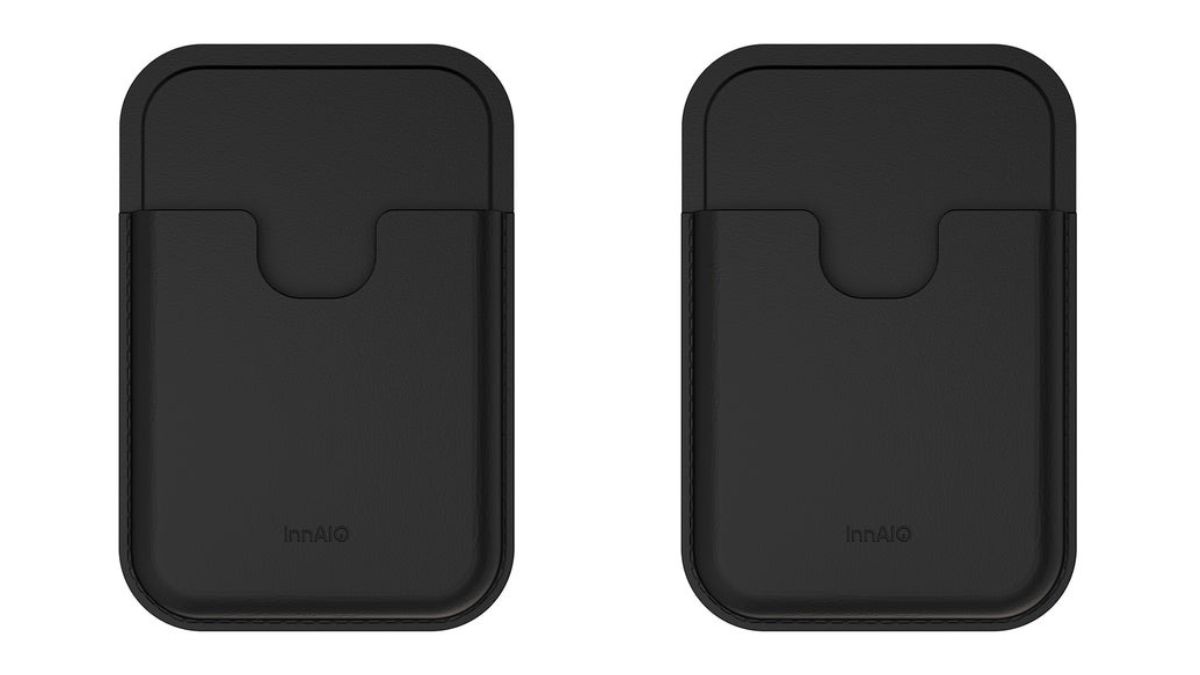
Meetings run long, lectures move fast, and interviews rarely wait for you to catch up on paper. If you finish the day with half-finished notes and a nagging feeling that the important sentence slipped past you, the problem is not your handwriting speed or your focus. It is the tool. Traditional note-taking asks you to listen, filter, decide, and transcribe in the same breath, and something always gets dropped. A modern AI voice recorder flips that workload by capturing every word cleanly, then handing you a structured, searchable document you can actually use. This article walks through the real costs of legacy note-taking, what today’s smart recorders do differently, and how to pick a model that fits your daily workflow rather than the other way around.
The Hidden Costs of Manual Note-Taking
Handwritten and typed notes feel productive in the moment, yet the true cost only surfaces later. You return to a page of shorthand three days after a client call and realize you cannot reconstruct the exact commitment made, or you scroll through a laptop transcript that captured most words but none of the speakers. Every missing detail becomes a follow-up email, a delayed decision, or a quiet loss of credibility. Studies of knowledge work repeatedly show that professionals spend a large share of their week searching for information they already produced. Manual notes contribute directly to that drain because they are unstructured, poorly indexed, and locked inside a single format.
There is also an attention tax. When your brain is dedicated to writing, it cannot fully engage with the speaker, ask sharp questions, or notice non-verbal cues. Students miss the moment an instructor pivots to what will be tested. Reporters miss the pause before a source reveals something delicate. Consultants miss the executive’s hesitation on a number. Choosing to record with the right tool is not a shortcut for lazy note-takers. It is a way to redirect your attention to the interpretive work only a human can do, while a purpose-built device carries the mechanical burden of capture.
What Makes an AI Voice Recorder Different
A modern best ai voice recorder is not simply a microphone with a save button. It is a small workflow engine that treats audio as raw material for something more useful: readable text, tagged speakers, extracted action items, and searchable archives. The moment you finish a session, the device begins doing the work that used to consume your evening.
Accurate Transcription in Noisy Rooms
The core value is transcription that survives real-world conditions. Coffee shops, echoing conference rooms, and outdoor interviews used to break consumer voice recorders. Newer models combine directional microphones with noise-suppression algorithms trained on messy audio, so the output remains readable even when a speaker turns away or a chair scrapes across the floor. Look for devices that separate voice from ambient sound at the hardware layer rather than relying only on cloud cleanup after the fact, because the difference shows up on any recording where every second matters.
Speaker Identification and Structured Output
A wall of text is almost as unhelpful as no text at all. The feature that actually earns its keep is speaker diarization, which labels each turn in a conversation so you can see who said what. Combine that with automatic summaries and extracted action items, and a two-hour meeting collapses into a page you can act on immediately. This is where AI transcription tools separate themselves from the audio recorders of the last decade. The device becomes a document generator, not a passive archive.
Choosing the Right Recorder for Your Workflow
The best recorder for a graduate student is not the best recorder for a field journalist, and neither may suit a partner in a law firm. Before comparing models, describe your typical session honestly. How long does it run? Do speakers overlap? Do you need to reference the audio again, or is text enough? Does the environment stay quiet, or does the microphone need to earn its living? Answering these questions filters most of the market instantly.
Battery Life and Storage for Long Sessions
If you record all-day workshops or back-to-back client interviews, battery becomes the silent limiting factor. A device that captures ten hours on a charge with plenty of onboard storage keeps you from rationing recordings or hunting for outlets between rooms. Pay attention to how the device handles a mid-session recharge as well, because some models pause the recording when plugged in and others continue seamlessly.
Language Coverage and Export Options
Multilingual users have needs that generic recorders ignore. If you work across languages, verify that the recorder transcribes each one accurately rather than defaulting to English and mangling the rest. Export flexibility matters too. A transcript trapped inside a proprietary app is only half useful. Look for exports to plain text, DOCX, and PDF, plus straightforward sharing to cloud storage so your notes flow into the tools you already use.
Putting the Recorder to Work
Owning the hardware is only the start. The recorders that change how you work are the ones you actually pull out at the right moment, so build small habits around them. Before a meeting begins, ask permission and place the device where the primary speakers can be heard clearly, then let it run without fiddling. After the session, spend five minutes skimming the auto-generated summary and correcting any names or acronyms the model missed. These corrections compound, because most systems learn from your edits and get sharper over time.
Teams that adopt a shared recorder such as those from INNAIO often build a lightweight standard for where transcripts live, how they are named, and who owns follow-ups. That discipline turns the tool from a personal convenience into a piece of team infrastructure. Even solo users benefit from a simple filing convention, because the value of a searchable archive grows with every session you add to it.
Reclaiming Your Attention, One Recording at a Time
Note-taking should not compete with listening, and the best professionals stopped forcing that trade-off years ago. A capable AI voice recorder shifts the mechanical work of capture and transcription onto a device built for it, freeing you to think, question, and respond in real time. The result is not just tidier documentation. It is deeper engagement with the people in front of you and a genuine reduction in the after-hours cleanup that quietly consumes so many careers. Choose a recorder that fits the sessions you actually run, not a spec sheet, and give it a few weeks to settle into your routine. Once the transcripts start arriving before you finish walking back to your desk, the old way of working will feel unreasonable.
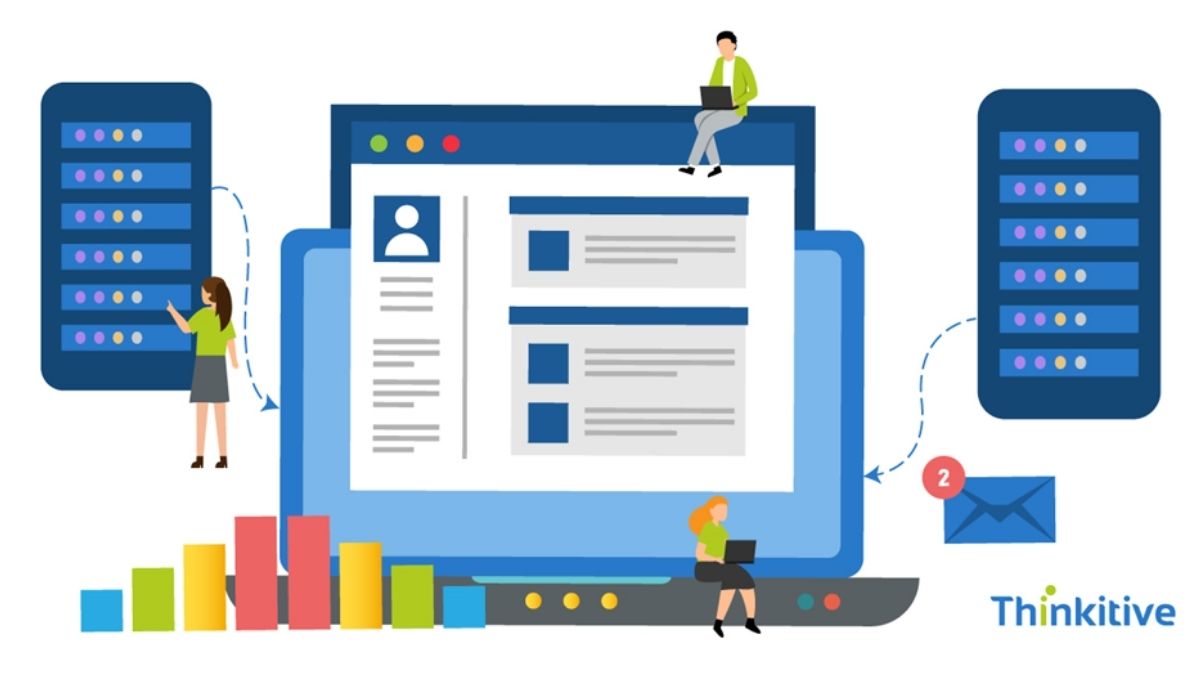
A modern EHR can have advanced features, seamless workflows, and a polished user interface, but if the database behind it is not designed properly, everything eventually starts to crack under pressure.
As healthcare organizations grow, so does the volume of patient records, clinical notes, lab results, prescriptions, billing data, and integrations flowing through their systems. What works for a few thousand records today can become a bottleneck for millions tomorrow.
The results are obvious: Slow performance, duplicate data, reporting challenges, and integration headaches that frustrate not only providers but also patients.
The stakes are even higher now. Today, healthcare organizations are expected to exchange data seamlessly, support interoperability standards, deliver real-time patient information, and scale without disturbing care delivery.
However, unfortunately, many EHR platforms struggle to achieve this because their underlying data structure was never built with growth in mind. Because of this, database design patterns for healthcare EHR systems have become a key part of modern EHR development.
A well-planned healthcare database architecture not only stores data but also creates the foundation for performance, stability, interoperability, and long-term success.
Let this blog be your comprehensive guide to exploring the key database strategies, architectural approaches, and EHR data management best practices that help organizations build a scalable medical record database design capable of supporting both current demands and future growth.
Understanding Healthcare Data Requirements
Before designing anything, you have to understand what healthcare data actually demands. It’s more varied and more sensitive than the data most applications handle.
● Managing clinical, administrative, and billing information in one system
An EHR brings together clinical notes, scheduling, demographics, and billing, different types of data with different structures and uses. The database has to organize all of it coherently so the system works as a unified whole.
● Handling large volumes of patient records and historical data
Healthcare data accumulates relentlessly and is rarely deleted. The design must accommodate years of records and history while keeping retrieval fast.
● Maintaining data accuracy across providers and departments
When multiple providers and departments touch the same patient’s data, consistency is critical. The structure needs to ensure everyone sees accurate, up-to-date information rather than conflicting versions.
● Preparing for interoperability and future system expansion
Data won’t stay inside one system. Designing with exchange and growth in mind from the start prevents painful restructuring later when you connect to partners or add capabilities.
Key Database Design Principles for EHR Systems
With requirements understood, certain core principles guide how the data should actually be structured. These are the fundamentals that separate a durable design from a fragile one.
● Organizing patient information for efficient record management
Data should be structured logically, like well-organized tables and sensible normalization, so information is stored cleanly, without harmful duplication, and is easy to manage and update.
● Creating reliable relationships between different healthcare data types
Patients, encounters, providers, medications, and results all relate to one another. Defining these relationships clearly and reliably keeps the data connected and consistent across the system.
● Supporting fast access to records, histories, and clinical workflows
Clinicians need information instantly. Thoughtful indexing and query optimization ensure that records, histories, and the data behind clinical workflows load quickly even as the database grows.
● Building flexible structures that adapt to changing healthcare needs
Healthcare evolves new data types, new regulations, and new workflows. A flexible design that can accommodate change without a complete rebuild protects the investment over time.
Building for Performance and Scalability
A design that works for a single small practice can collapse under the load of a growing organization. Planning for scale from the beginning is what keeps performance steady as demands rise.
● Supporting growth across multiple providers, clinics, and locations
As an organization adds providers and locations, the database must handle more users and more data without degrading. Designing for that growth early avoids costly re-architecture later.
● Maintaining system speed as patient data volumes increase
Performance shouldn’t erode as records pile up. Techniques like efficient indexing and, where appropriate, partitioning large datasets help keep access fast, no matter how much data accumulates.
● Reducing delays during peak usage periods
Healthcare has busy stretches when many users hit the system at once. The architecture needs to handle peak loads gracefully so the system stays responsive when it’s needed most.
● Preparing the platform for future features and integrations
A scalable design leaves room to add features and connections down the road, so the database supports the organization’s evolution rather than constraining it.
Security and Compliance Considerations
In healthcare, the database holds some of the most sensitive information that exists about a person. Protecting it isn’t optional; it’s central to the design and to compliance.
● Protecting sensitive healthcare information through secure data practices
Patient data should be protected with strong safeguards, including encryption of stored data, so that information remains secure even if the underlying storage is compromised.
● Implementing role-based access and permission controls
Access to data should be governed by role, ensuring users can reach only the information their job requires. This supports the principle of least privilege and limits exposure.
● Using audit trails to track system activity and changes
Logging who accessed or changed data, and when, creates accountability and supports compliance, while making it possible to detect and investigate unusual activity.
● Aligning database management with HIPAA requirements
The database layer must support HIPAA’s expectations around safeguarding electronic health information, like access controls, encryption, and audit capabilities, so compliance is built into the foundation rather than retrofitted.
Supporting Interoperability and Innovation
A modern EHR database isn’t a closed vault; it’s a hub that connects to a wider ecosystem and feeds the tools that drive better care.
● Enabling seamless data exchange through FHIR and HL7 standards
Structuring data so it can map cleanly to recognized standards like HL7 and FHIR makes exchanging information with other systems far smoother, avoiding fragile custom workarounds.
● Connecting with labs, pharmacies, and third-party healthcare systems
A well-designed database makes it easier to integrate with external systems for orders, results, and prescriptions, removing the manual gaps that slow care and introduce errors.
● Reducing data silos across healthcare organizations
Thoughtful design and standards support help keep data from being trapped in isolated pockets, so information flows where it’s needed across the organization.
● Creating a foundation for analytics, reporting, and AI-powered tools
Clean, well-structured data is the raw material for analytics and emerging AI tools. A strong database design makes these capabilities possible rather than blocking them with messy, inaccessible data.
Conclusion
It’s easy to overlook the database when so much attention goes to features and interfaces, but strong database architecture influences EHR success more than almost any other technical decision. It’s the layer everything else stands on, and its quality is felt in every interaction with the system.
The art of it lies in balancing scalability, security, and usability, which are three demands that can pull against each other. A design that’s fast but insecure, or secure but rigid, fails the organization that depends on it. The best designs hold all three in balance so they reinforce one another.
In the end, the goal is creating a future-ready healthcare platform, one whose data foundation can grow, connect, and adapt as healthcare changes. Whether you’re pursuing custom EHR initiatives or partnering with experts in Thinkitive EHR development, it’s important to give the database the attention it deserves early, because it’s far harder to fix later.
Frequently Asked Questions
1. What are the most effective database design patterns for healthcare EHR systems?
The most effective database design patterns for healthcare EHR systems include relational data modeling, modular database architecture, patient-centric data structures, master patient indexing (MPI), and event-driven data models. These patterns help healthcare organizations manage complex clinical data, improve data consistency, support interoperability, and ensure long-term scalability. Choosing the right design pattern depends on the organization’s workflows, integration requirements, and future growth plans.
2. Why is database architecture important for EHR performance?
Database architecture serves as the foundation of an EHR platform. A well-designed healthcare database architecture enables faster data retrieval, smoother system performance, efficient reporting, and seamless integration with other healthcare applications. Poor architecture can lead to slow response times, data duplication, and scalability challenges that negatively impact clinical workflows.
3. How do healthcare organizations manage large volumes of patient data?
Healthcare organizations manage growing data volumes through structured data models, database indexing, data partitioning, archiving strategies, and cloud-based infrastructure. Following EHR data management best practices helps maintain data quality, improve accessibility, and ensure consistent performance as patient records and healthcare transactions continue to increase.
4. What database structure works best for multi-location healthcare practices?
Multi-location healthcare organizations often benefit from a centralized database architecture with standardized data models and controlled access mechanisms. This approach allows providers across different facilities to access accurate patient information while maintaining data consistency, security, and operational efficiency across the network.
5. How can EHR databases support FHIR and HL7 interoperability?
EHR databases can support FHIR and HL7 interoperability by using standardized data structures, API-driven integration frameworks, and mapping strategies that align clinical data with industry standards. A flexible database design makes it easier to exchange patient information securely between EHRs, laboratories, pharmacies, payers, and other healthcare systems.
6. What security measures are essential for healthcare databases?
Essential healthcare database security measures include role-based access controls, data encryption, multi-factor authentication, audit logging, regular security assessments, and automated backup and recovery processes. These controls help protect sensitive patient information, reduce security risks, and support compliance with healthcare regulations.
7. How do audit trails improve compliance in EHR systems?
Audit trails create a detailed record of user activities within an EHR system, including data access, updates, and modifications. They improve accountability, strengthen security monitoring, support regulatory compliance efforts, and help healthcare organizations investigate suspicious activities or unauthorized access attempts.
8. What are the common database design mistakes in healthcare applications?
Common database design mistakes include poor data normalization, lack of scalability planning, inconsistent data standards, weak security controls, inadequate indexing, and insufficient support for interoperability requirements. These issues can result in performance bottlenecks, data integrity problems, and costly system redesigns in the future.
9. How can healthcare organizations build scalable databases for future growth?
Organizations can achieve a scalable medical record database design by adopting flexible data models, cloud-based infrastructure, efficient indexing strategies, database partitioning, and interoperability-focused architectures. When combined with proactive planning and performance optimization, these approaches help healthcare systems accommodate increasing patient volumes, new technologies, and evolving business requirements without major disruptions.
TECHNOLOGY
A Practical Guide to Automatic Downloads and Storage Management in Desktop Messaging Apps
Apps
A Windows laptop can have plenty of free storage when Telegram Desktop is first installed. A few months later, the same computer may begin showing low-storage warnings even though the user has not installed many new programs.
The reason is often simple: messaging applications handle far more than text.
Large groups and channels can contain thousands of images, videos, animated media, documents, archives and audio files.
When some or all of that media is downloaded or cached automatically, storage use can grow quietly in the background.
The solution is not necessarily to delete everything. A better approach is to understand the difference between downloaded files, cached media and cloud content, then configure Telegram Desktop according to the way the computer is actually used.
Understand Downloads, Cache and Cloud Media
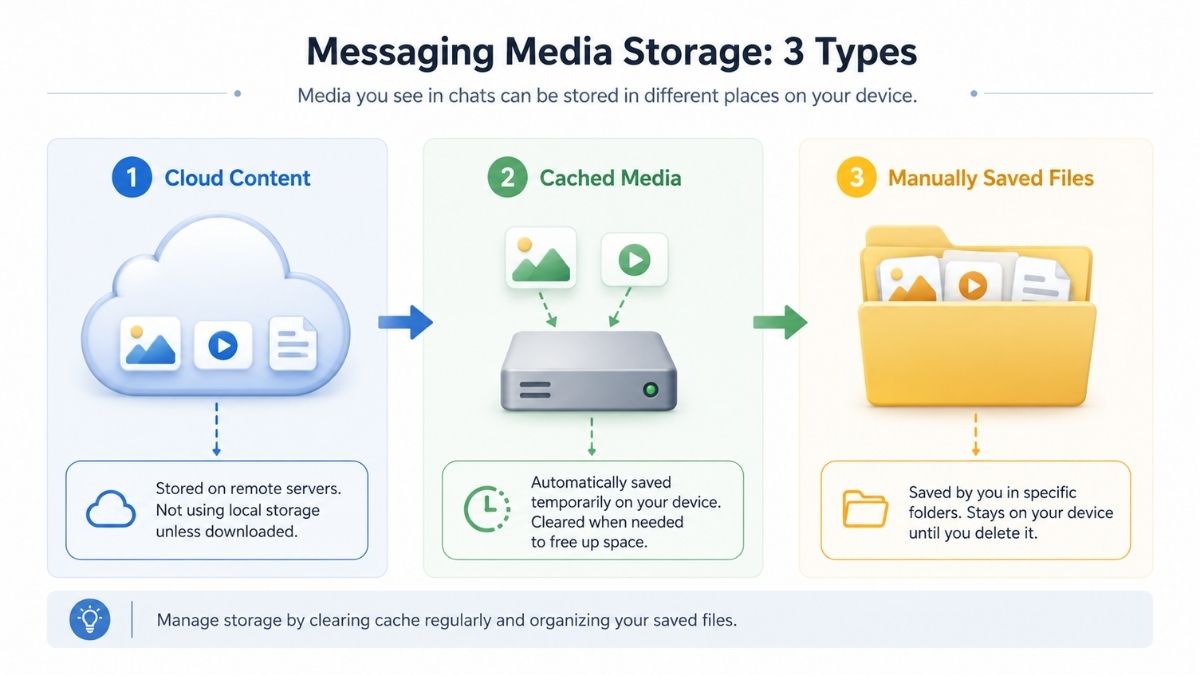
Before changing settings, it helps to separate three different concepts.
Cloud content
Telegram conversations and supported media can remain associated with the user’s account and be available across authenticated devices. That does not mean every file is permanently stored on the Windows computer.
Cached media
A desktop application may keep local copies of media so previously viewed content opens faster. Cache is primarily about convenience and performance. It should not be treated as a permanent file archive.
Manually downloaded files
When a user intentionally saves a document, image or other file into a chosen folder, that file becomes part of the user’s own local storage. This is the category that matters most for work documents that need to remain organized.
The distinction is important because clearing cached media and deleting an intentionally saved work file are not the same thing.
Why Telegram Desktop Storage Can Grow Quickly

Large groups
A busy community or work group can receive hundreds of images and files every week.
Video-heavy channels
Video consumes far more space than ordinary text or small images. Following several media-heavy channels can increase local storage rapidly.
Automatic media downloads
Convenience settings may download content users never intended to keep.
Long cache retention
Media that remains cached for long periods can accumulate across many conversations.
Work documents
Teams may repeatedly exchange PDFs, presentations, spreadsheets, ZIP archives, images and video exports. If those files are also copied manually into project folders, multiple local versions may remain on the computer.
Review Auto-Download Behavior by Media Type
Photos
Photos are generally smaller than video and may be useful to download automatically in direct chats or small work groups. However, image-heavy public communities can still generate substantial storage over time.
Videos
Video is often the first category worth limiting. A single high-resolution video can use more space than hundreds of text messages. Users who participate in many media channels may prefer to download videos manually.
Documents and files
Documents vary dramatically in size and importance. A small PDF and a large archive should not necessarily follow the same rule. Work users should also consider whether files really belong in the chat history or in an organized project folder.
Animated media
GIF-like and animated content can seem insignificant individually but accumulate in very active communities. The right setting depends on how much of that media the user actually revisits.
Users who prefer a Chinese-language walkthrough can consult Telegram 自动下载设置 for additional reference before adjusting desktop media behavior.
The objective should not be to disable every convenience feature. It should be to decide which categories deserve automatic local storage.
Do Not Use the Same Rule for Every Conversation
Private chats
Automatic image downloads may be reasonable when conversations involve trusted contacts and relatively small amounts of media.
Work groups
Documents may be useful, but automatically downloading every video may not be necessary.
Large public groups
High-volume groups can generate enormous amounts of media that the user never opens. More restrictive download behavior may make sense.
Media channels
Video-heavy channels are an obvious candidate for manual downloads.
The broader principle is: The more content a conversation generates, the more selective automatic downloads should become.
File Size Matters
Another useful control is the size of automatically downloaded media. Not every small image needs manual approval. Likewise, there is little reason for a multi-hundred-megabyte video to download automatically simply because it appeared in a channel.
A practical approach is:
- allow lightweight media when useful;
- review larger videos manually;
- review large archives before downloading;
- treat executable files with additional caution.
Specific size settings can change between client versions, so users should focus on the principle rather than memorizing one exact number from an old screenshot.
Know Where Important Files Go
Application-managed storage
Cached content is managed primarily for application performance. Users should avoid treating obscure cache folders as their normal document archive.
User-selected downloads
Files intentionally saved into a known folder are easier to organize and back up. For work documents, that is usually preferable.
A practical workflow might be: Receive in Telegram → review → save important file → rename clearly → move into project folder.
This avoids turning the messaging application into the only place where an important document can be found.
Cache Is Not a File Archive
This deserves emphasis: Cache exists for convenience, not records management.
If a file matters to a project, business process or long-term personal record, save it intentionally.
Important files should have:
- a meaningful name;
- a known folder;
- an appropriate backup;
- a clear project context.
Otherwise users eventually face questions such as: “Was that the approved version?”, “Which group contained the final PDF?”, or “Did I actually save that file or only open it once?” Those are file-management problems, not messaging problems.
Clear Storage Without Losing Important Files
Step 1 — Review what is using space
Look at which media categories are contributing most heavily. Videos often deserve particular attention.
Step 2 — Identify files that matter
Before clearing cached or downloaded content, make sure important work documents have been saved somewhere appropriate.
Step 3 — Remove unnecessary cached media
Older content that can be retrieved again may not need to remain locally stored.
Step 4 — Adjust auto-download settings
Otherwise storage will simply grow again.
Step 5 — Recheck free disk space
Confirm that the changes actually solved the problem.
Exact menu names and storage controls can change with application versions, so users should follow the current client rather than rely solely on old screenshots.
Reduce Accumulation Instead of Repeatedly Clearing Everything
Storage management works best when it is preventive. If a user clears several gigabytes today but leaves the same aggressive auto-download settings enabled, the same problem may return.
Instead, consider:
- which media should download automatically;
- which groups deserve stricter limits;
- how long cached content should remain;
- where important files should be saved.
For additional Chinese-language context on cache, media categories, and storage behavior, Telegram 媒体自动下载管理指南 can be used as a focused reference.
The goal is not to create an empty cache. It is to keep storage growth predictable.
A Better Setup for Work Computers
Smaller images
Allow them automatically where useful.
Large videos
Download manually.
Work documents
Save intentionally to a project folder rather than relying on chat storage.
Archives
Review before downloading and opening.
Media-heavy channels
Use conservative automatic download behavior.
Storage review
Check periodically rather than waiting for Windows to issue a low-space warning.
This is especially useful for laptops with smaller SSDs.
Keep the Downloads Folder Under Control
Sometimes Telegram itself is not the only source of clutter. Users may manually download the same file several times.
A Windows Downloads folder can accumulate:
- repeated PDFs;
- duplicate images;
- ZIP files;
- installers;
- temporary exports;
- renamed versions.
A monthly review of the Downloads folder can recover space and make important files easier to locate. For work use, move long-term files into structured folders rather than leaving everything in Downloads.
Hong Kong and Taiwan Users With Large Community Groups
Telegram users in Hong Kong and Taiwan may participate in large community groups, interest groups, professional communities, news channels, and trading or discussion groups.
These environments can generate large quantities of visual media. The language of the group is not what affects disk usage. Volume and media type do.
A Traditional Chinese group sharing several large videos every day can consume storage just as quickly as an English-language channel. Users who participate in many communities should therefore review automatic media behavior instead of assuming that desktop storage will remain small indefinitely.
Auto-Download Does Not Mean Auto-Trust
Storage settings also have a security dimension. Automatically receiving a file does not make that file safe to open.
Users should be particularly careful with:
- executables;
- scripts;
- unknown archives;
- unfamiliar office documents;
- files sent from newly joined groups.
A file may come through a legitimate messaging platform while still being supplied by an untrusted user. Treat the platform and the sender as separate trust decisions.
For ordinary images and videos, the primary concern may be storage. For executable or active content, security should come first.
Create a Monthly Storage Routine

Free Windows storage
Check whether the drive is approaching capacity.
Telegram storage
Identify large cached categories.
Large videos
Remove unnecessary local copies.
Important work files
Move them into the correct project folders.
Downloads folder
Delete duplicates and temporary files.
Automatic download settings
Confirm that the current behavior still matches the way Telegram is being used.
The process does not need to take long. Ten minutes of maintenance can prevent hours of searching for files or recovering disk space later.
Five Settings That Usually Matter Most
- Automatic photo downloads
- Automatic video downloads
- Automatic file downloads
- Cache or storage retention
- Where manually saved files are stored
Users do not necessarily need the most restrictive configuration. They need one that matches their usage. Someone in two small private groups can use more generous settings than someone following dozens of video-heavy channels.
Storage Management Is Really Workflow Management
A messaging application can make files easy to receive. That does not mean every received file should remain on the computer forever.
A sustainable desktop workflow separates three jobs: Messaging for communication. Cache for convenience. Folders and storage systems for important files.
Once those roles are clear, storage becomes much easier to manage. Users can keep the convenience of automatic media where it helps, restrict it where it creates clutter and preserve important documents outside the temporary flow of conversation.
Frequently Asked Questions
Why is Telegram Desktop using so much storage?
Large groups, videos, automatic downloads and cached media can accumulate over time.
Does clearing cache delete my chats?
Cache and chat history are different concepts. Users should still review current application behavior and make sure important locally saved files are protected before clearing storage.
Where are Telegram Desktop downloads stored?
The location depends on the client configuration and whether the file was cached or intentionally saved. Important documents should be placed in a known user-managed folder.
How do I stop Telegram from downloading videos automatically?
Review the current automatic media download settings in Telegram Desktop and reduce automatic behavior for video or high-volume chats.
Should work files stay only inside Telegram?
No. Important project files should be saved into an organized project folder, shared drive or other appropriate storage system.
How often should I review Telegram Desktop storage?
A monthly review is a practical starting point for heavy users, while lighter users may need to check less frequently.
-

 NEWS1 year ago
Historical Churches in Manila
-

 TOPIC2 months ago
Unveiling AvTub: Your Ultimate Guide to the Best AV Content
-

 TOPIC1 year ago
Symbols of Hope: The 15th Belenismo sa Tarlac
-

 TOPIC1 year ago
RIZAL at 160: a Filipino Feat in Britain
-

 TOPIC1 year ago
“The Journey Beyond Fashion” – Ditta Sandico
-

 TOPIC1 year ago
5 Must-Have Products From Adarna House to Nurture Your Roots
-

 TOPIC2 weeks ago
Understanding Fascisterne: Origins and Ideological Roots
-

 TOPIC1 year ago
Filipino, alternative language course at Moscow State University