
TOPIC
How to Use Your iPhone as a TV Remote

Losing the TV remote always seems to happen at the worst possible moment. Maybe it has disappeared between the sofa cushions, the batteries have died, or someone else in the house has taken it. Fortunately, if you have an iPhone nearby, you may not need the physical remote at all.
Modern Smart TVs can often be controlled over Wi-Fi, which means your iPhone can act as a digital remote. Depending on your TV, you can change the volume, switch channels, navigate menus, search for movies, launch streaming apps, and control playback directly from your phone.
There are several ways to do this. Apple provides its own Remote feature for compatible devices, while third-party apps can offer broader compatibility with different TV brands and streaming platforms.
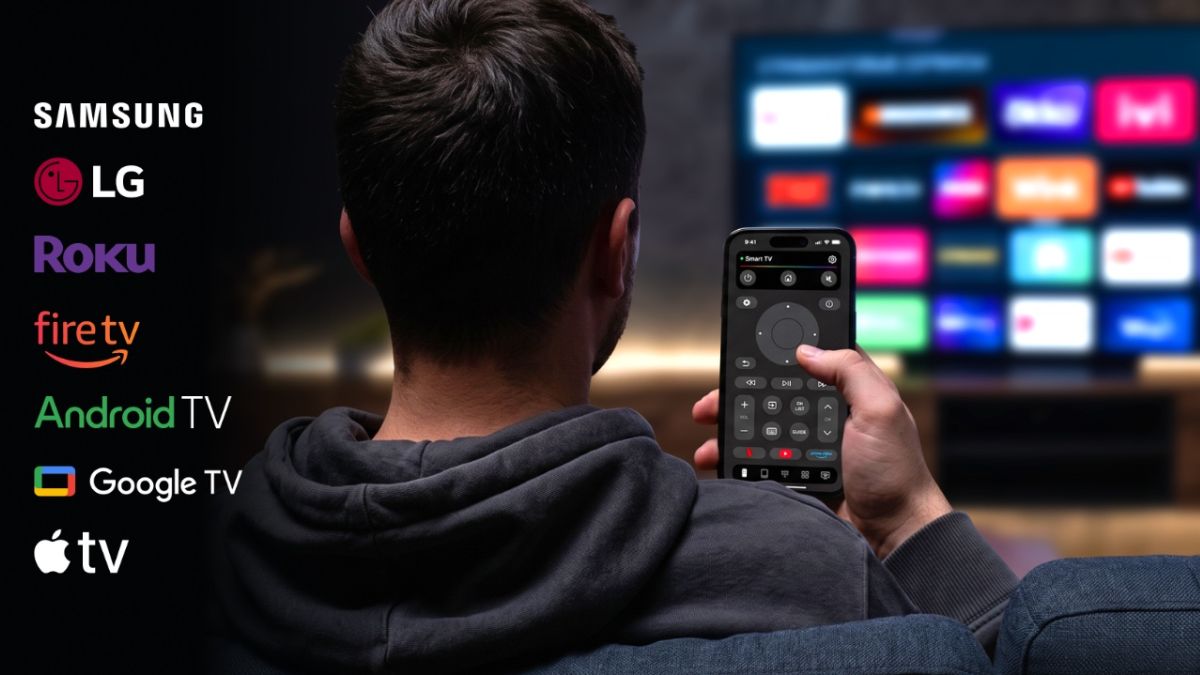
One option worth considering is TVRem, a free universal remote app for iPhone and iPad. It supports a range of popular Smart TV platforms and combines traditional remote buttons with touchpad, keyboard, and voice-input features.
If you want a broader overview of the available options, this guide to using an iPhone as a TV remote is also useful.
Can You Really Use an iPhone as a TV Remote?
Yes. Many Smart TVs communicate with other devices through your home Wi-Fi network. A compatible remote app can use that connection to send commands from your iPhone to the television.
This is different from a traditional infrared remote. Instead of pointing the phone directly at the TV, the iPhone and TV generally communicate through the same wireless network.
That also means there is usually one important requirement: your iPhone and TV need to be connected to the same Wi-Fi network.
Once the connection is established, the phone can become a surprisingly capable replacement for the physical remote.
The exact features depend on the TV model and the app you use. Some solutions are designed for one specific TV ecosystem, while universal remote apps are intended to work across several brands and platforms.
How to Use an iPhone as a TV Remote With TVRem
If you’re looking for one app that can work with different types of Smart TVs, TVRem is one option to try.
TVRem is available for iPhone and iPad and supports popular platforms including Samsung, LG, Roku, Fire TV, Android TV, Google TV, and Apple TV. The current App Store listing also describes features such as touchpad navigation, keyboard input, voice control on supported devices, and quick access to streaming apps.
Step 1: Download TVRem
Start by downloading TVRem from the App Store.
The app requires iOS 17 or later. It is also available for iPad.
Step 2: Connect Your iPhone and TV to the Same Wi-Fi
Before opening the app, check the network connection on both devices.
Your iPhone and Smart TV should normally be connected to the same Wi-Fi network. This allows the app to discover the television on your local network.
If your TV doesn’t appear later, checking the Wi-Fi connection is one of the first things worth doing.
Step 3: Open TVRem
Launch TVRem on your iPhone.
The app will look for compatible devices on the network. Depending on your television, you may need to give the app permission to access devices on your local network.
Step 4: Select Your TV
When your TV appears in the list, select it.
Some devices may ask you to enter or confirm a code displayed on the TV screen. This is a normal part of pairing and helps make sure you’re connecting to the correct device.
Once the pairing process is complete, your iPhone can start functioning as the remote.
Step 5: Start Controlling Your TV
From there, you can use the controls available for your particular TV.
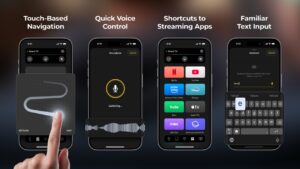
TVRem provides several ways to interact with the television, including traditional buttons and touchpad navigation. You can swipe through menus, tap to select items, adjust volume, control playback, and perform other everyday remote functions.
The benefit of having these controls on a phone is that you already know how to use the interface. Instead of searching for tiny buttons on a physical remote, you can use familiar gestures on your iPhone.
What Can You Do With an iPhone TV Remote?
Using your iPhone instead of a physical remote isn’t only useful when you’ve lost the original remote. Some functions can actually be more convenient on a phone.
1. Navigate With a Touchpad
TV menus can be frustrating when you’re moving a cursor using four directional buttons.
TVRem includes touchpad navigation, allowing you to swipe and tap on your iPhone to navigate compatible TV interfaces.
This can be particularly useful when browsing menus or navigating streaming services.
2. Type Using Your iPhone Keyboard
Searching for a movie with a TV remote can involve slowly selecting one letter at a time.
A phone keyboard makes that process much easier. With TVRem, you can enter search terms, movie titles, app names, and other text directly from the iPhone.
For anyone who frequently searches for content on a Smart TV, this can be one of the most useful advantages of a phone-based remote.
3. Use Voice Input
Some supported TV configurations also allow voice control through Google Assistant or Alexa. TVRem additionally lets you use voice input from your phone when text needs to be entered.
Instead of typing a long movie title, for example, you can speak it into your phone.
The exact voice features available depend on the TV and connected ecosystem, so they shouldn’t be considered universal across every device.
4. Launch Streaming Apps
TVRem provides quick access to popular streaming platforms such as Netflix, YouTube, and Prime Video.
This can be handy when you regularly switch between streaming services and don’t want to navigate through several menus first.
5. Control Playback and Volume
The basic functions you’d expect from a remote are also available: volume control, playback controls, channel navigation, and other TV functions depending on the connected device.
The advantage is that the remote is now attached to something you are much less likely to lose: your phone.
Which TVs Work With TVRem?
One of the reasons to consider a universal remote app is compatibility.
TVRem is designed to work with several major Smart TV platforms and streaming devices, including:
- Samsung Smart TVs
- LG Smart TVs
- Roku devices and Roku TVs
- Fire TV devices and compatible Amazon Smart TVs
- Android TV
- Google TV
- Apple TV
The App Store listing specifically identifies Samsung, LG, Roku, and Fire TV in the app’s description, while also listing Android TV, Google TV, and Apple TV among supported devices and platforms.
However, compatibility can vary depending on the exact TV model, operating system, and network configuration. If you are unsure, it is worth checking whether your particular television appears as a supported device before relying on the app as your only remote.
What If Your TV Doesn’t Appear?
Sometimes an iPhone remote app won’t immediately find a TV. This doesn’t necessarily mean that the app doesn’t work with your television.
Try these steps:
Check the Wi-Fi connection
Make sure the iPhone and TV are connected to the same Wi-Fi network. This is particularly important for network-based remote apps.
Check local network permission
On iPhone, apps that communicate with devices on your local network may need permission to access that network. If the permission was previously denied, the TV may not appear.
Restart the app
Close and reopen the remote app, then allow it to scan for devices again.
Restart the TV
Smart TV network connections can occasionally get stuck. Restarting the television and trying again can resolve the issue.
Check compatibility
If the TV still isn’t detected, check whether its model and operating system are supported.
What About Apple’s Built-In TV Remote?
You don’t necessarily need a third-party app to control every TV from an iPhone.
Apple includes a Remote control in the iPhone’s Control Center. It is particularly useful for Apple TV and compatible AirPlay-enabled televisions. The setup involves selecting the TV from the Remote interface and, when requested, entering the code shown on the television.
This can be a good choice if your household is entirely within Apple’s ecosystem.
The limitation is compatibility. If you have several different brands of Smart TVs or use devices such as Roku or Fire TV, a universal remote app may be more convenient than relying exclusively on Apple’s built-in solution.
That’s where an app such as TVRem can be useful: instead of having separate solutions for different TV platforms, you can try managing compatible devices from one application.
iPhone Remote vs. Physical Remote: Which Is Better?
It depends on how you use your TV.
A physical remote has one major advantage: it works without needing your phone to be charged or unlocked. For some people, pressing a dedicated button also feels faster.
An iPhone remote, however, has some practical advantages:
| Physical Remote | iPhone Remote |
| Easy to grab when nearby | Usually already with you |
| Dedicated buttons | Touchpad and gestures |
| Traditional TV keyboard | iPhone keyboard |
| Can be lost | Easier to locate |
| Requires batteries | Uses your iPhone |
| Usually tied to one device | Some apps support multiple platforms |
For occasional TV use, either option can work perfectly well. But if you frequently lose the remote, need to type searches, or have multiple types of Smart TVs at home, an iPhone-based remote can be a convenient backup.
Is TVRem Worth Trying?
For someone who simply wants to replace a lost remote, the most important things are compatibility and ease of setup.
TVRem takes a relatively straightforward approach: connect the iPhone and TV to the same Wi-Fi network, select the television, and use the phone as the remote.
It also goes beyond simply recreating a traditional remote. Touchpad navigation, phone-based keyboard input, quick access to streaming apps, and voice-related features can make certain tasks easier than using the original remote.
And because TVRem is listed as a free app on the App Store, there is no need to purchase a physical replacement remote just to regain basic control of a compatible TV.
Of course, it isn’t a universal solution for literally every television ever made. Compatibility depends on the TV or streaming device, and some features may vary between platforms.
But for compatible Smart TVs, turning your iPhone into a remote can be one of those small changes that becomes surprisingly useful.
Final Thoughts
If you’ve ever spent ten minutes looking for a TV remote that was sitting somewhere within arm’s reach, using an iPhone as a remote is worth knowing about.
The process is generally simple: install a compatible app, connect your iPhone and TV to the same Wi-Fi network, pair the devices, and start controlling the TV from your phone.
Apple’s built-in Remote is a good option for Apple TV and compatible AirPlay devices. For people who want broader compatibility across Smart TV platforms, TVRem offers another approach, with support for devices from Samsung, LG, Roku, Fire TV, Android TV, Google TV, and Apple TV.

A business transaction can move quickly once interest becomes serious, but a company should not begin preparing only after a letter of intent arrives. Deal readiness means being able to explain how the company makes money, who owns what, how work gets done, and where the risks sit. For owners and buyers navigating that process, RWT Capital Advisory Services can be part of a broader conversation about transaction preparation and strategic options.
The objective is not to make a business look perfect. It is to make the facts accessible, consistent, and understandable. Good preparation can reduce avoidable delays, prevent surprises during diligence, and help both sides focus on the issues that genuinely affect value and terms.
Why Deal Readiness Matters
Readiness gives an owner choices. A company that has organized records before a transaction can respond promptly to reasonable buyer questions rather than scrambling to recreate history. It also gives buyers a clearer basis for assessing earnings, risk, and the work required after closing.
Preparation is most useful when it begins well before negotiations. Owners who start preparing two to five years ahead of a potential sale generally have more time to improve reporting, reduce operational dependence, and consider personal, tax, and succession decisions. A profitable company can still encounter problems in diligence if only one person knows how to reconcile the accounts, approve payments, or maintain important customer relationships.
Start With Clean Financials
Financial records are often the first detailed test of the business story. Prepare monthly profit and loss statements, balance sheets, cash flow reports, tax returns where relevant, accounts receivable and payable aging reports, debt schedules, lender statements, payroll records, and a clear description of owner compensation.
Buyers commonly look for normalized earnings, meaning earnings adjusted for unusual, nonrecurring, or owner-specific expenses. Invoices, payroll reports, or a written explanation should support each adjustment. Aggressive add-backs, unexplained margin changes, and personal expenses mixed into company accounts can undermine confidence. Monthly reporting also helps show seasonality, customer changes, and whether recent growth is repeatable.
Review Legal and Corporate Records
Legal preparation should happen before marketing a company. Gather formation documents, ownership records, shareholder or operating agreements, meeting minutes where applicable, material contracts, leases, equipment agreements, permits, licenses, insurance policies, intellectual property records, and details of current or threatened claims.
Missing signatures, expired agreements, unclear ownership, and change-of-control provisions can all create work late in a transaction. A buyer may need confirmation that key contracts will remain in effect after closing. A pre-sale legal review helps identify documents that should be renewed, corrected, or disclosed early.
Reduce Owner Dependence
A business is harder to transfer when the owner is the sole salesperson, operator, relationship manager, and decision-maker. Reduce that risk by documenting daily and weekly procedures, assigning management responsibilities, recording customer and vendor contacts, setting approval limits, and training at least one additional person on essential tasks.
Create a Transferable Operating Playbook
A concise operations manual can explain how orders are processed, how customers are served, who approves spending, and what happens when a problem occurs. This is not bureaucracy for its own sake. It gives a buyer, manager, or successor a workable starting point and makes the company more resilient even if no sale occurs.
Test Customer and Revenue Strength
Revenue quality can matter as much as revenue size. Review customer concentration, renewal patterns, contract terms, payment history, churn, gross margin, backlog, and pipeline activity. Ask whether results depend heavily on one large account, a personal relationship with the owner, a single product, one market, or a temporary order.
Clear customer-level information allows a buyer to build a more realistic forecast. It also helps the seller identify where diversification, improved contract documentation, or account management support may be needed before going to market.
Organize Operations and Key Systems
Document the systems that allow the company to operate after ownership changes. Review supplier relationships, inventory controls, equipment lists, maintenance records, service or production workflows, software licenses, renewal dates, cybersecurity practices, access controls, safety requirements, and regulatory procedures.
Undocumented workarounds may keep a business moving today, but they can become risks when a key employee leaves. Maintain a short risk register that identifies each issue, its likely operational or financial impact, the proposed response, and the person responsible.
Prepare a Simple Data Room
A data room is a secure, organized location for transaction documents. Use separate folders for corporate records, financial statements, taxes, customers and suppliers, employees and benefits, contracts and legal matters, assets and property, and technology. Consistent file names and current versions make review easier.
Access should be limited according to the sensitivity of the information. Personal employee data, customer data, and highly confidential commercial information should be shared only when appropriate and under suitable confidentiality arrangements.
Check Deal Structure and Working Capital
An asset purchase and a share purchase can produce different results for taxes, assumed liabilities, employee transfers, contracts, permits, financing, and seller proceeds. The appropriate structure depends on the facts, the parties, and applicable law, so legal, tax, accounting, and financial advice should be obtained before final terms are selected.
Working capital also deserves early attention. The parties should define the cash, debt, inventory, receivables, payables, and other items included at closing so that the business has the resources needed to continue ordinary operations.
Plan for Due Diligence Questions
Due diligence tests whether the business narrative matches the evidence. Expect questions in four areas: financial performance and earnings quality, commercial stability and customers, operational continuity, and legal obligations or restrictions. A general overview of operational due diligence can help frame why systems, controls, and key processes receive attention alongside financial records.
Do not wait for a buyer to uncover a difficult issue. Prepare a straightforward explanation, supporting documents, and a realistic remediation plan where needed. A written response log can keep owners, managers, and advisers aligned during a fast-moving review.
Build a Post-Close Transition Plan
Closing is a milestone, not the end of the work. A practical 30-, 60-, and 90-day plan should address employee communication, customer and supplier notices, banking controls, technology access, management handover, reporting expectations, and any seller transition duties.
Early priorities should be limited and concrete: maintain payroll continuity, protect customer service, preserve critical supplier relationships, and confirm who has decision-making authority. Clear ownership of these tasks reduces disruption during the first months after closing.
Final Readiness Check
- Can the last three years of financial results be explained clearly?
- Are important contracts current, signed, and easy to locate?
- Can daily operations continue without one key person?
- Is customer concentration measured and understood?
- Are tax, legal, employee, and compliance issues documented?
- Can a reviewer navigate the data room without constant assistance?
- Is there a realistic plan for the first three months after closing?
A deal-ready business is clear, organized, and candid about both strengths and risks. Unanswered questions are preparation tasks, not reasons for panic. By addressing them early, owners and buyers can enter a transaction with better information, fewer surprises, and a stronger foundation for the transition ahead.

Have you ever wondered how to stay safe while riding a motorcycle? Motorcycles are fun and fuel-efficient, but they come with unique risks. Riders are more exposed to danger than car riders.
Accidents can cause serious injuries, but you can prevent many with the right habits. Learning simple safety tips makes every journey safer.
These tips are easy to follow and can save lives. Read on to discover important ways to protect yourself and enjoy your ride with confidence.
Always Wear Protective Gear
Wearing protective gear is the first step to staying safe on your motorcycle. A helmet is the most important piece of equipment. Jackets, gloves, long pants, and sturdy boots help protect your skin from injuries.
Bright or reflective clothing makes you more visible to other drivers. Good gear keeps you comfortable and reduces injuries in an accident.
Check Your Motorcycle Before Each Ride
A quick pre-ride check can prevent mechanical problems on the road. Make sure your tires have enough tread and are properly inflated. Test your brakes, lights, and signals to make sure they work properly.
Look for leaks or loose parts that could cause trouble while riding. Regular checks keep your motorcycle in safe working condition for every ride.
Keep a Safe Distance
Keep enough space between your motorcycle and other vehicles. Following too closely reduces your reaction time to sudden stops.
Leave at least a two-second gap, and increase it in bad weather. Staying back gives you time to avoid road hazards or unexpected moves by others. Remember, more space means more time to stay safe.
Watch for Blind Spots
Many drivers do not see motorcycles in their mirrors or when changing lanes. Always avoid riding in another vehicle’s blind spot.
Position yourself so other drivers can see you at all times. Use your horn or lights if you think a driver might not see you. Knowing blind spots helps prevent accidents caused by unseen motorcycles.
Ride Defensively
Defensive riding means staying alert and expecting the unexpected from other road users. Watch out for drivers who may turn without signaling or stop suddenly.
Stay focused on the road and avoid distractions, like using your phone. If you ever need to understand motorcycle accident fault in West Virginia, knowing defensive techniques can help show you took every precaution. Defensive riding helps you stay in control and avoid dangerous situations.
Adjust to Weather and Road Conditions
Bad weather and rough roads can make riding more dangerous. Slow down on wet or slippery roads, and be extra careful in fog or heavy rain.
Avoid sudden moves that could cause you to lose control. Watch out for potholes, loose gravel, or oil spots. Adjust your speed and riding style to the conditions to stay safer on every trip.
Building Safer Riding Habits
Motorcycle safety is not just about following rules; it is about making smart choices every time you ride. Protective gear, safe distances, and defensive habits help lower your risk on the road.
Checking your bike and adjusting to the weather can prevent many common accidents. Remember, being alert and prepared makes a big difference. Make safety part of your riding routine. Enjoy the freedom of the road while staying protected.
Did you like this guide? Great! Please browse our website for more!
Can a simple mistake become a legal claim that changes someone’s life? Tort cases address many harms caused by careless, harmful, or wrongful conduct.
Some involve physical injuries, while others concern property, privacy, or personal reputation. Understanding common tort types helps people recognize possible rights and legal remedies.
Negligence remains one of the most frequent examples in everyday situations. Defamation and other claims can involve less visible but serious personal harm.
This guide explains key tort cases clearly, so readers understand what each claim involves. Keep on reading!
What Is a Tort Case?
A tort case is a civil legal dispute between two or more people or entities. It usually happens when someone claims another person caused them harm or loss.
Most tort cases do not involve the police or criminal courts. Instead, the harmed person may ask for money or other remedies in civil court. These legal cases focus on fixing the damage done, not on punishing a criminal act.
Negligence: The Most Common Tort
Negligence occurs when someone acts carelessly and harms another person. For example, a driver who texts while driving and causes a crash may be found negligent.
Slip-and-fall cases in grocery stores often involve negligence too. In these cases, the injured person must show that someone failed to act with reasonable care.
Intentional Torts: When Harm Is No Accident
Some torts happen because someone meant to cause harm, not by mistake. These are called intentional torts. Examples include assault, battery, or false imprisonment.
If someone punches another person during an argument, that can be an intentional tort. Courts look at the person’s actions and intent when deciding if the harm was intentional.
Strict Liability: Responsibility Without Fault
Strict liability cases do not focus on whether the person meant to cause harm or was careless. Instead, certain activities are so risky that the law holds people responsible even if they took all precautions.
Common examples include injuries from defective products or owning dangerous animals. If a product hurts someone because it was unsafe, the company may be strictly liable.
Defamation: Protecting Reputations
Defamation involves making false statements that hurt someone’s reputation. There are two types: libel and slander. To prove defamation, the harmed person must show the statement was false and caused real damage.
For example, spreading lies about someone online could lead to a defamation lawsuit. These cases can be complex because they involve freedom-of-speech concerns.
Other Common Tort Cases
Besides the main types, many other torts appear in civil courts every year. Trespass is when someone enters another person’s property without permission.
Nuisance cases deal with situations where someone’s actions interfere with another’s enjoyment of their property. Cases like the Equibit lawsuit show how tort law can apply to modern business disputes.
Understanding the Impact of Torts
Tort cases play a big role in protecting people from harm and unfair treatment. They help ensure that those who cause harm must take responsibility. By learning about these cases, everyone can better understand their rights and responsibilities.
Knowing the basics can help people avoid trouble and handle legal issues if they arise. Tort law is always changing to meet new societal challenges. Staying informed is the best way to protect yourself.
Did you like this guide? Great! Please brow
-

 NEWS1 year ago
Historical Churches in Manila
-

 TOPIC2 months ago
Unveiling AvTub: Your Ultimate Guide to the Best AV Content
-

 TOPIC1 year ago
Symbols of Hope: The 15th Belenismo sa Tarlac
-
 TOPIC1 year ago
RIZAL at 160: a Filipino Feat in Britain
-

 TOPIC1 year ago
“The Journey Beyond Fashion” – Ditta Sandico
-

 TOPIC1 month ago
Understanding Fascisterne: Origins and Ideological Roots
-

 TOPIC1 year ago
Simbang Gabi and Kakanin
-

 TOPIC1 year ago
Filipino, alternative language course at Moscow State University