
TECHNOLOGY
How to Choose RAM Compatible with Your Motherboard?

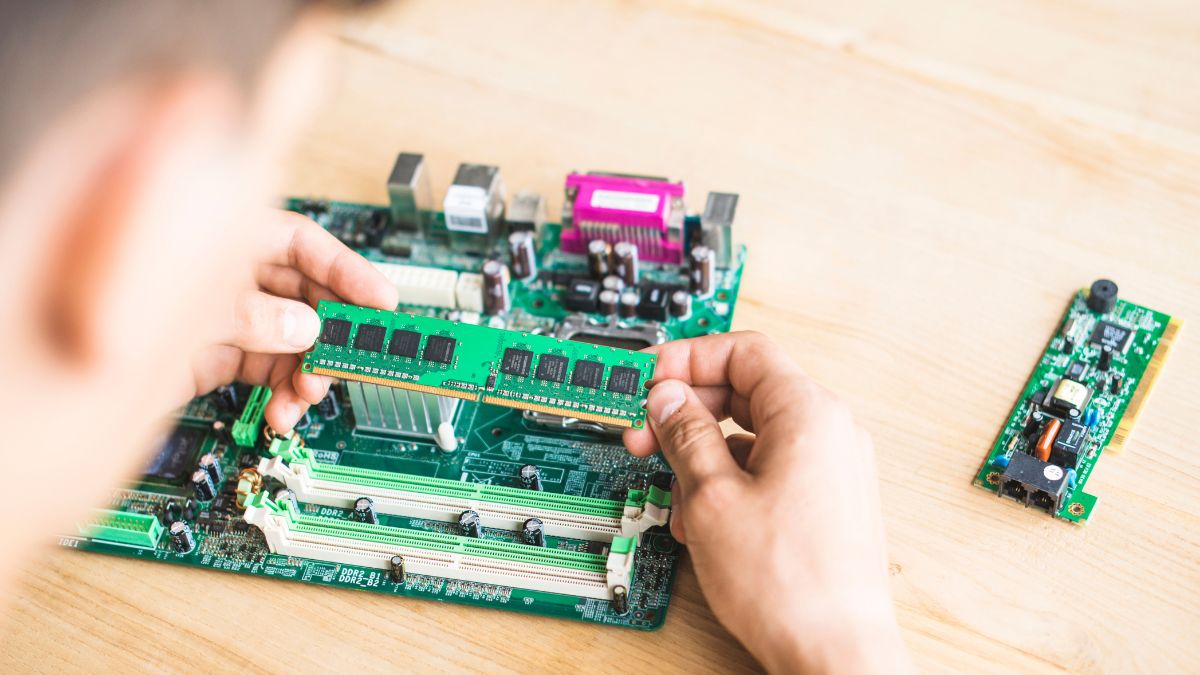
Choosing the right RAM for a computer is not only about selecting the amount of memory needed. RAM must also be compatible with the motherboard to work correctly and deliver the expected performance. Different motherboards support specific RAM generations, speeds, capacities, and configurations. Therefore, checking motherboard specifications before purchasing memory is an important step in building or upgrading a PC.
Understanding how to choose RAM compatible with your motherboard helps prevent compatibility problems and ensures that the system can use the installed memory efficiently.
Check the RAM Generation Supported by the Motherboard
The first thing to check when choosing RAM is the DDR generation supported by the motherboard. Common generations include DDR3, DDR4, and DDR5. These standards are not interchangeable.
For example, a motherboard designed for DDR4 memory cannot use DDR5 RAM, even if the physical appearance seems similar. The position of the notch on each RAM module is different, preventing incompatible memory from being installed in the wrong slot.
Motherboard specifications usually state the supported memory type clearly. Checking this information before purchasing RAM is one of the easiest ways to avoid a compatibility issue.
Check the Maximum RAM Capacity
Another important factor is the maximum amount of RAM supported by the motherboard. Every motherboard has a maximum memory capacity determined by its chipset, processor compatibility, BIOS support, and DIMM slots.
A motherboard may support configurations such as:
- Up to 32 GB of RAM
- Up to 64 GB of RAM
- Up to 128 GB of RAM
- Up to 192 GB or more on newer platforms
The number of RAM slots also matters. A motherboard with four memory slots provides more flexibility for future upgrades than a board with only two slots.
For example, if a motherboard supports up to 64 GB and has four slots, a 2 × 16 GB configuration leaves two slots available for a future upgrade.
Pay Attention to RAM Frequency
RAM frequency, commonly expressed in MHz or MT/s depending on the specification, can affect memory performance. However, the motherboard and processor determine which memory speeds are officially supported.
A RAM kit advertised at a high speed may still work on a compatible motherboard, but it may operate at a lower default speed unless the system supports the advertised profile.
For this reason, it is important to check the motherboard’s official memory support list and the processor’s memory specifications before purchasing high-speed RAM.
Modern DDR5 platforms, for example, can support significantly higher memory speeds than older DDR4 systems. However, simply purchasing the fastest available memory does not always provide the best value.
Check the Number of RAM Slots
Motherboard RAM slots determine how many memory modules can be installed and how the memory can be configured.
Most desktop motherboards use two or four DIMM slots. Using multiple compatible modules can enable dual-channel or other multi-channel memory configurations, depending on the platform.
For many systems, purchasing a matched RAM kit such as 2 × 8 GB or 2 × 16 GB is preferable to installing a single module. A matched kit can provide better memory bandwidth when the motherboard supports dual-channel operation.
The motherboard manual also shows which slots should be populated first. On a four-slot motherboard, for example, the recommended configuration may use the second and fourth slots rather than placing both modules next to each other.
Check RAM Capacity Per Slot
Maximum total RAM capacity is not the only specification that matters. The motherboard may also have a maximum supported capacity per memory slot.
For example, a motherboard could support 128 GB of total RAM but have a specific limit for each DIMM slot. Checking both values helps determine whether a particular configuration will work.
It is also useful to check whether the motherboard supports the capacity of the specific RAM modules being considered, particularly when purchasing high-capacity DDR5 modules.
Check the Motherboard’s QVL
Many motherboard manufacturers provide a Qualified Vendor List (QVL) for memory. The QVL contains RAM models that have been tested with the motherboard under specific conditions.
A RAM module does not necessarily have to appear on the QVL to work. However, selecting a memory kit from the QVL can provide additional confidence, especially when building a high-performance system or using high-capacity memory.
The motherboard manufacturer’s support page is usually the best place to find the latest QVL and memory compatibility information.
Consider XMP or EXPO Support
Performance-oriented RAM often includes memory profiles that allow it to operate at its advertised specifications. Intel systems commonly use XMP, while AMD platforms commonly use EXPO for supported DDR5 memory.
Before purchasing a performance RAM kit, check whether the motherboard supports the relevant memory profile. Without the appropriate profile support or manual configuration, RAM may operate at a standard JEDEC speed rather than its advertised performance level.
This is particularly important when buying high-frequency DDR5 memory.
Check RAM Form Factor
Desktop computers generally use DIMM memory, while laptops commonly use SO-DIMM modules. These formats are physically different and cannot be used interchangeably.
Therefore, a desktop motherboard normally requires standard DIMM RAM, while a laptop motherboard typically requires SO-DIMM memory.
Checking the form factor before purchasing is essential because even the correct DDR generation may not fit the intended device if the physical module type is different.
How to Check RAM Compatibility Before Buying
The easiest way to determine which RAM is compatible with a motherboard is to identify the exact motherboard model and check its official specifications.
Look for information about:
- Supported DDR generation
- Maximum total memory capacity
- Maximum capacity per slot
- Supported memory speeds
- Number of DIMM slots
- Supported memory profiles such as XMP or EXPO
- Recommended RAM configurations
- Qualified Vendor List, if available
The processor specification should also be checked because the CPU’s integrated memory controller can influence supported memory speeds and configurations.
Final Thoughts
Choosing RAM compatible with your motherboard requires more than checking the memory capacity. DDR generation, RAM frequency, module capacity, form factor, motherboard slots, processor support, and memory profiles all play a role in compatibility.
For most users, a matched RAM kit with the correct DDR generation and a reasonable supported speed is a practical choice. Checking the motherboard manufacturer’s specifications and QVL before purchasing can further reduce the risk of compatibility problems.
By comparing these specifications before buying, it becomes much easier to select RAM that fits the motherboard and provides reliable performance for gaming, productivity, content creation, or everyday computing.

Technology is no longer limited to brand-new vehicles. Many used cars now offer features that can make commuting, errands, family travel, and longer road trips more convenient. Depending on the vehicle’s age, trim, and equipment package, shoppers may find smartphone integration, backup cameras, driver-assistance systems, parking sensors, Bluetooth, navigation, and other useful technologies. When comparing options at a used car dealership Roanoake, understanding which features provide genuine everyday value can make the shopping process more practical. The goal is not simply to find the newest technology, but to find a used vehicle with features that suit the way it will actually be driven.
Smartphone Integration Keeps Familiar Apps Accessible
Apple CarPlay and Android Auto are among the most useful technologies to look for in a used vehicle. Compatible systems allow drivers to connect a smartphone with the vehicle’s infotainment display and access selected navigation, communication, music, and voice-assistant functions.
For drivers who already use smartphone-based navigation and entertainment, this can make the transition into a used vehicle much easier. Instead of learning an entirely different digital ecosystem, they can continue using familiar applications through the vehicle.
Availability varies considerably by model year and trim, so shoppers should verify whether a particular vehicle offers wired or wireless connectivity. Consumer Reports also notes that wireless smartphone integration can be especially convenient when paired with a wireless charging pad.
Bluetooth Makes Calls and Audio More Convenient
Bluetooth is another technology worth checking when shopping for a used car. Compatible systems can allow drivers to make hands-free calls and stream audio from a smartphone without connecting a physical cable.
This can be valuable for daily commuting because a driver can keep a phone stored safely while accessing calls or music through the vehicle’s controls. Bluetooth can also be useful for passengers who want to connect their own devices during longer journeys.
Before purchasing a used vehicle, it is worth testing the Bluetooth connection. Pair a compatible phone, make a call, and play audio to ensure that the system works as expected.
Backup Cameras Improve Rearward Visibility
A backup camera is one of the most practical safety technologies available in modern vehicles. It provides a view of the area directly behind the car while reversing.
NHTSA explains that backup cameras help drivers see behind the vehicle and can help prevent backover crashes. The agency also emphasizes that cameras should not replace mirrors or physically checking the surroundings.
For used-car shoppers, this feature can be especially helpful in crowded parking lots, driveways, and narrow spaces. When evaluating a vehicle, check whether the camera image is clear and whether the display responds quickly when reverse is selected.
Blind Spot Warning Can Add Awareness During Lane Changes
Blind Spot Warning is another feature that can add value to a used vehicle. The system monitors areas alongside the vehicle and can alert the driver when another vehicle is detected in a blind spot.
NHTSA describes Blind Spot Warning as a system that alerts drivers when a vehicle is present in an adjacent lane and may not be visible through normal observation.
This can be useful during highway driving and on busy multilane roads. However, the technology should supplement—not replace—mirror checks and looking over the shoulder before changing lanes.
When inspecting a used vehicle with this feature, confirm that the warning indicators operate properly and check the owner’s manual for information about the system’s operation and limitations.
Forward Collision Warning Provides Another Layer of Awareness
Forward Collision Warning can be useful for drivers who want additional assistance when monitoring traffic ahead. NHTSA explains that the technology detects a potential collision with a vehicle ahead and provides a warning to the driver.
This can have everyday value in traffic where vehicles may slow or stop unexpectedly. It is important to understand that Forward Collision Warning generally provides an alert rather than automatically stopping the vehicle.
Some used vehicles may also have Automatic Emergency Braking, which can apply the brakes when a forward collision is imminent. NHTSA identifies Automatic Emergency Braking as a technology that can help avoid or reduce the severity of certain forward crashes.
Lane Assistance Can Help With Highway Driving
Lane Departure Warning and Lane Keeping Assistance are technologies that may be particularly useful for drivers who frequently travel on highways.
Lane Departure Warning monitors lane position and alerts the driver when the vehicle approaches or crosses lane markings. Lane Keeping Assistance can provide steering input to help prevent unintended lane departure.
These systems can provide additional awareness during longer drives, but drivers remain responsible for steering and monitoring the road. Lane markings, weather, construction zones, and other conditions can affect system performance.
When shopping for a used vehicle, test the feature only in appropriate conditions and review the vehicle’s instructions to understand how it operates.
Adaptive Cruise Control Can Make Longer Drives Easier
Traditional cruise control maintains a selected speed, while Adaptive Cruise Control can adjust the vehicle’s speed to maintain a preset following distance from traffic ahead.
NHTSA describes Adaptive Cruise Control as a system that automatically adjusts speed to maintain a selected distance from the vehicle in front.
For drivers who frequently travel on highways, this can add convenience during periods of steady traffic. It can reduce the need for repeated accelerator adjustments, although the driver must remain attentive and prepared to intervene.
Because adaptive cruise control was introduced at different times across manufacturers and models, shoppers should check the exact year and trim rather than assuming every used vehicle has it.
Parking Sensors Can Make Tight Spaces Easier
Parking sensors can be another useful technology for everyday driving. These sensors can alert drivers when an object is close to the vehicle during parking maneuvers.
Combined with a backup camera, parking sensors can provide two different types of information: a visual view behind the vehicle and alerts about nearby objects. This combination can be helpful in garages, shopping-center parking lots, and narrow driveways.
During a test drive, shoppers can check whether the sensors produce consistent warnings and whether the dashboard or infotainment display provides clear information.
Automatic High Beams Can Help at Night
Automatic high-beam technology can make nighttime driving more convenient. The system can switch between high and low beams based on lighting conditions and approaching traffic.
NHTSA explains that automatic high beams use sensors or cameras to determine when switching between high and low beams may be appropriate.
For used-car shoppers who frequently drive outside brightly lit areas at night, this can be a helpful feature. As with other driver-assistance technologies, it should be treated as an aid rather than something the driver can rely on without monitoring the road.
Touchscreen Infotainment Can Improve Daily Convenience
A touchscreen infotainment system can bring several functions together in one location. Depending on the vehicle, it may provide access to audio, phone settings, navigation, vehicle information, and smartphone integration.
However, shoppers should pay attention to usability rather than screen size alone. A system that responds quickly and has straightforward menus may be more useful than a larger display with complicated controls.
It is also worth checking whether the infotainment system still supports the smartphone technologies the buyer uses. Older systems may have Bluetooth but lack Apple CarPlay or Android Auto, making compatibility an important consideration.
USB Ports and Wireless Charging Add Practical Value
Charging options may seem like a minor feature, but they can be useful every day. USB ports allow drivers and passengers to charge compatible devices during commutes and road trips.
Some used vehicles may also offer wireless smartphone charging. This can reduce cable clutter and make it easier to keep a compatible phone charged.
Shoppers should inspect the ports individually because older vehicles may have USB-A connections rather than newer USB-C ports. Testing each connection can also reveal whether a port is functioning correctly.
Connected Services Can Extend Vehicle Functionality
Some used vehicles include connected services that can provide remote functions, emergency assistance, vehicle information, navigation support, or other services. However, these features can depend on subscriptions, cellular networks, vehicle age, and manufacturer support.
This makes it important to research the specific vehicle rather than assuming every connected feature remains active after ownership changes. A feature may also require a paid plan.
Understanding these limitations can prevent buyers from placing too much value on a service that may no longer be available.
Check Technology Before Buying a Used Vehicle
Technology should be evaluated just like mechanical and interior components. During a test drive, shoppers can check the infotainment display, pair a phone, test Bluetooth audio, inspect the backup camera, and verify that available safety alerts operate correctly.
NHTSA recommends that shoppers understand the capabilities and limitations of driver-assistance technologies and review the vehicle owner’s manual for specific information.
A vehicle history report and professional inspection can also complement the technology evaluation. If a warning light is illuminated or an electronic feature is not working correctly, the issue should be investigated before completing the purchase.
Conclusion
Used-car technology can provide meaningful everyday value when it supports the way a vehicle is actually used. Smartphone integration, Bluetooth, backup cameras, blind spot warnings, collision alerts, lane assistance, adaptive cruise control, parking sensors, automatic high beams, and charging options can all improve convenience or awareness.
The best technology package depends on individual priorities. Instead of choosing a used vehicle simply because it has the longest list of features, shoppers can focus on technologies they expect to use regularly. Testing those features during an inspection and confirming their availability for the specific model year can help ensure that modern technology remains a useful part of the ownership experience.

Startups are natural early adopters of AI software. The right product can help a small team automate routine work, test ideas faster, and deliver capabilities that once required a much larger organization. The challenge is that the market is crowded with tools making similar promises.
A startup can easily spend more time testing software than it saves by using it. A disciplined discovery and evaluation process helps founders capture the benefits of AI without building an expensive, fragmented stack.
Begin with a workflow, not a trend
The strongest reason to adopt a tool is a clearly defined problem. Teams should identify the workflow that is slow, repetitive, inconsistent, or limiting growth.
Starting with the problem prevents “AI” from becoming the requirement. It also creates a measurable outcome, such as faster research, shorter production cycles, improved response time, or fewer manual data updates.
Set constraints before searching
A startup should decide what it can realistically support. Budget, security, integration requirements, and implementation effort are as important as features.
Founders should also consider who will own the tool. Software without a clear user or operating process often becomes another unused subscription.
Use curated discovery to narrow the market
Broad searches can return hundreds of products. Curated resources such as Slate index can provide a more structured view of AI tools and help startups explore solutions by use case.
For sales, marketing, and revenue workflows, GTM Exchange can focus discovery on technologies relevant to go-to-market execution.
These platforms should be starting points rather than automatic decision makers. Their value is helping a team identify plausible candidates quickly.
Run small, measurable trials
Startups should test the workflow, not just the interface. A short trial should use realistic data and involve the people who will use the product after purchase.
The team should define success in advance. A tool may save time but introduce quality problems, require extensive oversight, or create extra work elsewhere in the process. Those effects should be included in the evaluation.
Watch for overlap and switching costs
AI tools often expand their feature sets. A new product may duplicate software already in the stack, while an existing vendor may offer a capability the team has not enabled.
Before purchasing, startups should ask what the tool replaces, which data it stores, and how difficult it would be to leave. Export options, integrations, and contract flexibility matter even during early experimentation.
Build a stack that can evolve
The goal is not to predict the single best long-term tool. The market is moving too quickly for that. The goal is to make reversible, evidence-based decisions.
A healthy startup stack has clear owners, measurable value, limited duplication, and regular reviews. By combining curated discovery with disciplined trials, startups can benefit from AI innovation without turning software selection into a constant distraction.

Commercial construction is a complex ecosystem where engineering precision, regulatory oversight, and project management converge. For commercial builders, turning ambitious architectural blueprints into structural reality requires far more than just managing labor and materials. It demands a holistic master strategy that accounts for environmental factors, municipal mandates, safety standards, and operational risk.
To navigate this dynamic landscape, commercial general contractors and site managers must prioritize key operational pillars that safeguard project timelines, maintain profitability, and ensure long-term structural integrity.
1. Comprehensive Site Assessment and Geotechnical Evaluation
Before heavy machinery ever breaks ground, a thorough understanding of site-specific conditions is essential. Commercial developments often present unique topographic, soil, and hydrological challenges. Conducting comprehensive geotechnical surveys early allows project leaders to anticipate soil instability, high water tables, and natural drainage patterns.
Addressing site conditions proactively prevents catastrophic foundation delays and expensive structural re-engineering mid-project. Effective land preparation sets the baseline for the entire build lifecycle, ensuring that structural loads, excavation depth, and underground infrastructure are perfectly aligned with the natural environment.
2. Rigorous Environmental Compliance and Stormwater Management
Environmental regulations have become increasingly strict, with local, state, and federal agencies imposing heavy penalties for non-compliance. Stormwater management is often one of the most heavily scrutinized aspects of commercial earthwork. Uncontrolled sediment runoff, improper chemical storage, or inadequate erosion controls can lead to costly stop-work orders and severe environmental degradation.
A compliant project relies on well-structured Best Management Practices (BMPs) and trained personnel who understand regulatory expectations. For instance, obtaining a SWPPP certification in Idaho or adhering to similar regional stormwater standards equips site supervisors with the specialized skills needed to inspect, maintain, and document erosion controls effectively. Ensuring your team understands environmental mandates keeps your job site active, avoids regulatory fines, and protects surrounding watersheds.
3. Subcontractor Coordination and Quality Assurance Protocols
A commercial build is only as reliable as the trade partners executing the specialized work. Managing multiple subcontractors—from steel erectors and MEP specialists to grading teams—requires crystal-clear communication and structured quality assurance protocols.
Establishing standardized quality control checklists at every phase prevents minor workmanship issues from cascading into major systemic defects. Regular trade coordination meetings, synchronized scheduling, and clear accountability ensure that safety standards are upheld and work handoffs occur smoothly across all trades.
4. Dynamic Risk Management and Supply Chain Resilience
Unforeseen material delays, labor shortages, and unexpected weather events can disrupt even the most meticulous schedule. Successful commercial builders cultivate supply chain resilience by establishing relationships with multiple suppliers, pre-ordering long-lead materials, and incorporating buffer periods into critical path schedules.
Simultaneously, dynamic risk management involves continuous job site safety audits and proactive risk assessments. Building a culture where safety and compliance are prioritized minimizes accidents, lowers insurance liabilities, and keeps projects moving forward without costly disruptions.
5. Leveraging Construction Technology and Digital Documentation
Modern commercial construction relies heavily on technology to maintain accuracy and efficiency. Building Information Modeling (BIM), real-time site monitoring, and digital inspection logs allow project managers to spot design conflicts and compliance gaps before they manifest in the field.
Maintaining centralized, cloud-based project documentation ensures that inspection reports, permit updates, and design revisions are immediately accessible to field crews and stakeholders alike. Streamlined digital communication minimizes rework and provides an unassailable audit trail throughout the construction lifecycle.
Conclusion
Mastering commercial construction requires balancing structural precision with strategic foresight. By prioritizing early site evaluation, maintaining uncompromising environmental compliance, managing subcontractor workflows, and leveraging digital tools, commercial builders can consistently deliver high-quality projects on time and within budget. Building modern commercial spaces isn’t just about erecting structures—it’s about engineering sustainable, compliant, and enduring e
-

 NEWS1 year ago
Historical Churches in Manila
-

 TOPIC2 months ago
Unveiling AvTub: Your Ultimate Guide to the Best AV Content
-

 TOPIC1 year ago
Symbols of Hope: The 15th Belenismo sa Tarlac
-

 TOPIC1 year ago
RIZAL at 160: a Filipino Feat in Britain
-

 TOPIC1 year ago
“The Journey Beyond Fashion” – Ditta Sandico
-

 TOPIC1 month ago
Understanding Fascisterne: Origins and Ideological Roots
-

 TOPIC1 year ago
Simbang Gabi and Kakanin
-

 NEWS3 months ago
What Caused Delta Flight DL275 to Diverted LAX? A Detailed Breakdown